Enter each Canvas Assignment Group with its current percentage and the weight from your syllabus.
| Assignment Group | Score (%) | Weight (%) | Drop lowest | Remove |
|---|
| Assignment | Earned | Possible | Remove |
|---|
Letter grade reference (standard Canvas default scheme)
| Letter | Percentage | GPA Points (4.0) |
|---|---|---|
| A | 93-100% | 4.0 |
| A- | 90-92% | 3.7 |
| B+ | 87-89% | 3.3 |
| B | 83-86% | 3.0 |
| B- | 80-82% | 2.7 |
| C+ | 77-79% | 2.3 |
| C | 73-76% | 2.0 |
| C- | 70-72% | 1.7 |
| D+ | 67-69% | 1.3 |
| D | 63-66% | 1.0 |
| D- | 60-62% | 0.7 |
| F | Below 60% | 0.0 |
How the Canvas Grade Calculator Mirrors the Canvas Gradebook
The canvas grade calculator above reproduces the exact arithmetic Canvas runs when it displays a course total on the Grades page. Canvas supports two gradebook modes, plus a What-If feature for hypothetical scores. In Total Points mode, your course grade is earned points divided by points possible, multiplied by 100. In weighted Assignment Groups mode, Canvas computes each group as a percentage, multiplies by the group weight, and sums across all graded groups. The calculator above offers both modes plus a What-If target solver, switch tabs to match how your instructor configured the gradebook.
Canvas Grading: Assignment Groups and Weight Distribution
Canvas grading is built around the Assignment Groups model. Every assignment lives inside a group (Homework, Quizzes, Exams, Participation, and so on), and the instructor optionally assigns a weight percentage to each group through the gradebook gear menu. When weighting is enabled, Canvas computes the running course total as a weighted average across groups rather than a simple ratio of earned to possible points. The canvas grading scale follows the standard A-F bands by default (A at 93%, A- at 90%, B at 83%, and so on), but instructors can upload custom grading schemes, including elementary-school descriptors like Exceeds, Meets, Approaches, or pass/fail rubrics. Weighting grades in canvas does not require a separate canvas weighting grades tool when you understand the formula below.
Canvas Weighted Assignment Groups Formula
- Group Score (%) = (points earned in the group / points possible in the group) × 100
- Group Weight (%) = weight percentage the instructor set in the Assignment Groups configuration
- Canvas normalizes the denominator when not every group has graded work yet, so a mid-semester total reflects only the graded portion
Canvas Total Points Mode Formula
- Earned Points = sum of scores across every graded assignment in the course
- Points Possible = sum of point values across every assignment counted toward the grade
- Ungraded and excused assignments are excluded from both the numerator and denominator when "Calculate based only on graded assignments" is enabled (the default)
Canvas Grading Scale: Where Each Letter Sits
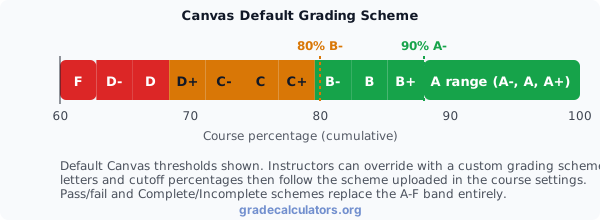
The canvas grading scale is configured per course through a "Grading Scheme" the instructor uploads or selects. The default Canvas scheme (used when no custom scheme is configured) matches the standard US plus/minus scale, A at 93%, B at 83%, C at 73%, D at 63%, F below 60%. Schools layered on top of Canvas (PowerSchool districts, Banner colleges, Workday universities) often push their own grading scheme, which can shift the thresholds. The flagship chart below shows the default Canvas thresholds with example percentages plotted on each band.
How to Grade on Canvas: Instructor Setup Versus Student View
How to grade on canvas as an instructor: open the Gradebook, click the gear icon, and choose either "Weight final grade based on assignment groups" (weighted mode) or leave it off (Total Points mode). For weighted mode, set the weight percentage of each Assignment Group through the Assignments page. For drop-lowest, click the group gear and enter a number under "Number of scores to ignore for each student". Students see the result on the Grades page without seeing any of the setup steps. The canvas grade calculator above models the student-facing math for both setups, useful for verifying that what Canvas shows matches what the syllabus promised.
How to Show Letter Grades in Canvas
How to show letter grades in canvas: open the course Settings, click "Grading Scheme", then enable the scheme (default Canvas scheme or a custom one your school uploaded). Once enabled, the Grades page shows both the percentage and the letter alongside each assignment and as the overall course total. The canvas grade calculator above does the same translation, the percentage you enter maps to a letter using the standard scheme by default. Students sometimes ask how to show grades on canvas at all when the instructor has hidden totals; the only fix is to ask the instructor to unhide the gradebook totals through the gradebook gear menu.
What-If Grades Canvas: How the Target Solver Works
The native canvas what if grades feature lives on the Grades page, click any score and Canvas opens a What-If input where you can enter a hypothetical value. The canvas what if grades iphone flow is identical inside the Canvas Student app, tap the grade and edit the projected score. Both interfaces let you see how one hypothetical score affects the rolled-up course total. What they do not do: solve in reverse. If you know you want an 85% in the course and 70% of the work is already graded, the native What-If does not tell you what score you need on the remaining 30%. The canvas grade calculator above adds that target-solver behavior in its dedicated What-If mode.
What-If Target Solver Formula
- Current % = your present weighted grade in the course
- Percent Already Graded = share of the course total weight that has been graded so far
- Target = the course grade you want to finish at
Calculate Based Only on Graded Assignments: The Canvas Default
Based on graded assignments canvas is the default setting on every Canvas course gradebook. With the toggle on, Canvas computes the running grade from only the assignments that have been graded so far, missing or ungraded work is left out of both the numerator and denominator. The result: a student with three As and one ungraded assignment shows 100% (not 75%) on the Grades page until the fourth assignment is graded. When the toggle is off, Canvas treats every unsubmitted assignment as a zero, which is harsher and tends to drop the running grade below where a student would expect it mid-semester. The canvas grade calculator above defaults to the only-graded behavior in Total Points mode, and a checkbox lets you flip to the count-missing-as-zero behavior to match your instructor configuration.
Drop Lowest Score in Canvas: How the Calculator Handles It
How to drop lowest grade in canvas as an instructor: open the gradebook gear icon on any Assignment Group and set "Number of scores to ignore for each student" to 1 (or more). Canvas then drops the lowest assignment from that group when computing the running total. The drop is per-group, not per-course, so a "drop lowest quiz" rule never affects exam grades. The canvas grade calculator above offers a Drop checkbox per group row in Assignment Groups mode, matching the per-group scope of the Canvas feature. When you toggle the Drop chip, you are signaling that the group percentage you entered already reflects the post-drop average Canvas computes, which avoids double-counting the dropped assignment.
Canvas GPA and Better Canvas Extensions
Canvas gpa is a search pattern, students look for a way to see cumulative GPA inside the Canvas UI, which Canvas does not natively support. Tools like the Better Canvas Chrome extension, sometimes called a canvas gpa calculator chrome extension or canvas gpa calculator extension, add that feature by scraping per-course percentages from the Grades page and running a 4.0-scale conversion in the browser. The accuracy of a better canvas gpa calculator depends on three things: every course percentage must be visible (no hidden totals), every course must map to a standard grading scheme, and the extension must pick up the correct credit-hour weight for each course. When any of those fail, the web-based canvas grade calculator above pairs cleanly with our GPA calculator for the same workflow without browser-extension permissions.
Does Canvas Calculate GPA?
Does canvas calculate gpa natively? No. Canvas exposes per-course percentages and (optionally) per-course letter grades. The cumulative GPA across all your courses lives in your school student information system (Banner, PeopleSoft, Workday Student, Power School), not in Canvas. A gpa calculator canvas integration is always a third-party add-on (Better Canvas, dedicated Chrome extensions, manual workflows like this site). The how to use gpa calculator on better canvas instructions: install the extension, open the Grades page for any course, and the extension injects a 4.0-scale GPA summary card based on the visible course totals. When that summary disagrees with your transcript, the transcript wins. Always verify with the registrar.
Reconciling the Canvas Grade Calculator With the Canvas Gradebook
A canvas grade calculator returns the same number as the Canvas gradebook course total when three conditions hold: every assignment counted toward the grade is entered with its actual score and point value (or every group with its actual percentage and weight), the mode matches the instructor configuration (Assignment Groups vs Total Points), and drop-lowest plus only-graded settings are applied consistently. Where divergence usually traces back to: late-penalty deductions Canvas applied that you did not reflect in the entered score, excused assignments treated differently inside Canvas, and grades hidden by a "manually posted" grading policy that hide the total at the bottom of the Grades page even though individual assignments are visible.
Tips for Using the Canvas Grade Calculator Effectively
- Check the gradebook mode first. Open the Grades page and look at the bottom. Seeing category percentages means Assignment Groups; seeing one earned-over-possible ratio means Total Points mode.
- Enter only graded work in Total Points mode by default. The Calculate Based Only on Graded Assignments toggle is on, matching the Canvas default. Flip it off only if your instructor has explicitly turned off the same setting in the gradebook.
- Apply drop-lowest at the group level, not the assignment level. When the Drop chip is on, the group percentage you enter should already reflect the post-drop average Canvas computes, so the rule is not applied twice.
- Reconcile after every major assignment posts. A half-point gap between the calculator and the Canvas total usually traces to a late penalty or an excused assignment, not a formula mismatch.
- Use What-If mode to plan, not predict. The required-score figure assumes the remaining 30% (or whatever you enter) is graded uniformly. Real coursework rarely is, treat the figure as a planning ceiling rather than an exact prediction.
Sources and Verification
The canvas grade calculator above implements the Canvas gradebook formulas as documented in Instructure's official Canvas Community guides. Specifically: the weighted Assignment Groups formula (Canvas Community: How do I weight the final course grade based on assignment groups?), the Calculate Based Only on Graded Assignments toggle (Canvas Community: How do I use the Gradebook?), the drop-lowest configuration (Canvas Community: How do I create rules for an assignment group?), and the What-If feature (Canvas Community: How do I use the What-If Grades feature?). For additional context on Canvas grading at the institution level, see Instructure's Canvas grading resources.
Always verify your projected course grade with the Canvas gradebook total and your instructor's syllabus. Custom grading schemes, late-policy deductions, and excused-assignment rules can move the final number, and only the official course total from the registrar or instructor is authoritative for academic decisions.