Enter each PowerSchool category with its current percentage and the weight from your syllabus.
| Category | Score (%) | Weight (%) | Drop lowest | Remove |
|---|
| Assignment | Earned | Possible | Remove |
|---|
Letter grade reference (standard PowerSchool 10-point scale)
| Letter | Percentage | GPA Points (4.0) |
|---|---|---|
| A+ | 97-100% | 4.0 |
| A | 93-96% | 4.0 |
| A- | 90-92% | 3.7 |
| B+ | 87-89% | 3.3 |
| B | 83-86% | 3.0 |
| B- | 80-82% | 2.7 |
| C+ | 77-79% | 2.3 |
| C | 73-76% | 2.0 |
| C- | 70-72% | 1.7 |
| D | 60-69% | 1.0 |
| F | Below 60% | 0.0 |
How the PowerSchool Grade Calculator Reproduces the Gradebook
The powerschool grade calculator above runs the same arithmetic PowerTeacher Pro applies when it shows a course total on the student and parent portal. PowerSchool supports four official grade calculation methods: Category Weighting, Total Points, Term Weighting, and Standards Weighting. The first two are by far the most common in K-12 courses, so the calculator above ships those as primary modes plus a What-If target solver that the native PowerSchool UI does not include. Switch tabs to match how your teacher configured the gradebook. The "how does powerschool calculate grades" question almost always traces back to which of those four methods the teacher selected in the gradebook setup.
PowerSchool Grading Calculator: Category Weighting Mode
A powerschool grading calculator built around Category Weighting matches the most common K-12 gradebook configuration. Categories are broad assignment classifications (Homework, Quizzes, Tests, Participation, Projects) that the teacher creates in the PowerTeacher Pro gradebook. Each category gets a weight percentage, the category's own (earned / possible) ratio is multiplied by the weight, and the weighted averages sum to the course percentage. The calculator above models the same math live in Category Weighting mode, useful for verifying that the syllabus weights match the gradebook configuration.
Category Weighting Formula
- Category Score (%) = (points earned within the category / points possible within the category) × 100
- Category Weight (%) = weight the teacher set for the category in the PowerTeacher Pro gradebook
- PowerSchool normalizes the denominator when not every category has graded work yet, so a mid-quarter total reflects only the graded portion
Total Points Mode Formula
- Earned Points = sum of scores across every graded assignment in the course
- Points Possible = sum of point values for every assignment counted toward the grade
- Missing assignments count as zero when the teacher flagged them missing; excused assignments drop from both numerator and denominator
PowerSchool Grading Scale: Where Each Letter Sits
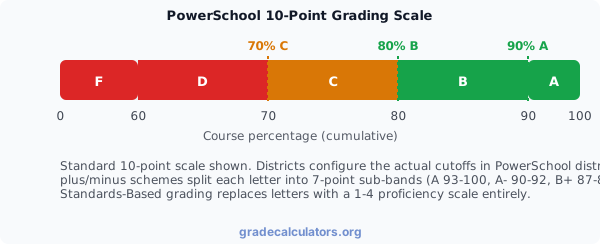
PowerSchool grading scales are district-configured rather than locked. The standard 10-point scale (A = 90-100, B = 80-89, C = 70-79, D = 60-69, F below 60) is the most common K-12 default, but plus/minus districts split the bands into seven-point groups (A 93-100, A- 90-92, B+ 87-89, B 83-86, and so on), and a handful of private schools push the A threshold to 93 with no D band at all. The flagship chart below plots the standard 10-point thresholds; switch to the plus/minus letter table in the details disclosure above when your district publishes the finer-grained scheme.
How Does PowerSchool Calculate Grades Across Multiple Terms?
How does powerschool calculate grades when a course spans multiple terms: the gradebook supports Term Weighting in addition to Category Weighting and Total Points. With Term Weighting enabled, the teacher assigns a percentage weight to each shorter reporting term (Q1 40%, Q2 40%, Final Exam 20% is the common semester pattern), and PowerSchool multiplies each term's calculated grade by its weight. The Term Weighting mode is not a third mode in the calculator above because it works identically to weighted final grade math, switch to our final grade calculator when you need to model quarter-to-semester or semester-to-year weighting explicitly. How does powerschool calculate final grade in courses that combine all three methods (categories within terms, then term weighting on top): PowerSchool runs the category math first to produce each term's grade, then applies the term weights to produce the course final.
Standards-Based Grading in PowerSchool
Standards Weighting is the fourth official PowerSchool calculation method, used in districts that have adopted standards-based reporting. Each assignment maps to one or more course standards on a 1-4 proficiency scale (1 Beginning, 2 Developing, 3 Proficient, 4 Exemplary is the common rubric). PowerSchool calculates a standard grade from the most recent or highest evidence per standard, then optionally rolls the standard grades into a traditional letter grade for the report card. The powerschool grade calculator above does not model the 1-4 scale directly because the conversion rule from standards to letters is district-specific; pair the standards rubric your district publishes with our generic grade calculator when the conversion table is published in the student handbook.
What-If Grades in PowerSchool: How the Target Solver Works
The PowerSchool portal does not include a native What-If feature the way Canvas does. Students who want to model a hypothetical score have to enter it in a spreadsheet or pull the math out by hand. The powerschool grade calculator above adds a dedicated What-If mode that goes the other direction, instead of plugging in a hypothetical score and reading the new course total, you enter your current grade, the share of work already graded, and a target. The calculator solves for the score required on the remaining work to hit the target. The result is the planning ceiling for the rest of the semester, useful for setting realistic study priorities ahead of the final exam.
What-If Target Solver Formula
- Current % = your present course grade in the PowerSchool gradebook
- Percent Already Graded = share of the course total that has been graded so far
- Target = the course grade you want to finish at
PowerSchool GPA Calculator: Weighted Versus Unweighted
A powerschool gpa calculator handles two figures independently. The unweighted version uses the 4.0 scale flat (A = 4.0, B = 3.0, C = 2.0, D = 1.0, F = 0.0) regardless of course difficulty. The weighted version adds a district-configured bonus: typically +0.5 for honors courses and +1.0 for AP or IB courses, producing a ceiling of 4.5 or 5.0 depending on district policy. PowerSchool stores the bonus rule in a district setup table called "GPA calculation methods", and the district administrator chooses which method appears in the portal. The powerschool gpa calculation runs per term and cumulatively, with the cumulative figure being a credit-hour-weighted average across every term to date. The grade calculator above produces the per-course percentage; pair it with our high-school GPA calculator for the cumulative roll-up that the powerschool gpa calculator extension and similar tools surface inside the portal.
Where GPA Appears in the PowerSchool Portal
GPA on powerschool can show up in three different places when the district publishes it: the Grade History screen footer (per-term and cumulative summary rows), the printable schedule export (cumulative only), and the district's custom report card format generated through PowerSchool. The PowerSchool Mobile app sometimes mirrors the web portal and sometimes shows fewer fields, district settings drive the difference. When neither view shows the figure, the gpa powerschool data is hidden by the district administrator, not missing from the database. A gpa calculator powerschool extension (the Chrome extension family that injects GPA cards into the Grade History page) reads each course percentage and runs the 4.0-scale conversion client-side, which works around the hidden-field problem but only matches the official transcript when the bonus table is configured identically.
BCA PowerSchool and Other District-Specific Scales
BCA PowerSchool, the Bergen County Academies portal, uses a 4.5-point unweighted ceiling rather than the standard 4.0, with bonuses of +0.5 for honors and +1.0 for AP. Other districts ship the straight 4.0 unweighted scale with the same +0.5 and +1.0 bonuses for weighted GPA. Private schools sometimes apply a 7-point scale where A starts at 93 instead of 90, which shifts every letter boundary up. The powerschool grading calculator above models per-course percentages across every scheme since percentages are scheme-independent; the difference shows up in the GPA conversion step, where each district's bonus rule decides which letters earn the +0.5 or +1.0 bump. When in doubt, the unweighted figure is the one most college admissions offices recalculate from the transcript regardless of what the portal shows.
Drop Lowest Score in PowerSchool: How the Calculator Handles It
PowerTeacher Pro lets the teacher drop the lowest score from any single category through the gradebook setup. The drop is per-category, not per-course, so a "drop lowest quiz" rule never affects test grades or homework grades. The powerschool grade calculator above offers a Drop checkbox per category row in Category Weighting mode, matching the per-category scope of the PowerSchool feature. When you toggle the Drop chip on a category, the percentage you enter should already reflect the post-drop average PowerSchool shows in the gradebook (the chip is a visible reminder, not a separate calculation step). This avoids double-counting the dropped assignment when the gradebook has already excluded it.
Reconciling the Calculator With the PowerSchool Gradebook
A powerschool grade calculator returns the same number as the PowerSchool course total when three conditions hold: every assignment or category counted toward the grade is entered with its actual score and weight, the mode matches the teacher configuration (Category Weighting versus Total Points), and drop-lowest plus excused-assignment settings are applied consistently. Divergences usually trace back to late-penalty deductions PowerSchool applied that you did not reflect in the entered score, excused assignments treated differently inside the gradebook, and grades marked missing that count as zero in Total Points mode but get excluded entirely from Category Weighting mode. When the figures stay apart by more than a point or two, the teacher's gradebook gear settings are the right place to check first.
All A's PowerSchool: Honor Roll Thresholds and Verification
All a's powerschool is a shorthand students and parents use for the situation where every course in the current term reads A on the Grade History screen. To verify all a's powerschool-equivalent, open the Grade History view, filter to the current term, and confirm every course final reads in the A band (90% or 93% depending on whether the district uses the standard 10-point scale or a plus/minus split). Most districts tie the Honor Roll designation to GPA thresholds rather than a literal "all A's" requirement: 3.5+ for Honor Roll, 3.75+ for High Honor Roll, and 4.0+ for Distinguished Honor Roll is the common pattern. The student handbook publishes the exact threshold for your district.
Tips for Using the PowerSchool Grade Calculator
- Confirm the gradebook calculation method first. Category Weighting and Total Points produce different course totals from the same raw scores, entering numbers in the wrong mode throws the figure off.
- Handle missing assignments the same way the teacher does. Some teachers flag missing work and count it as zero, others leave it out of the calculation. Match your entries to the teacher's gradebook configuration.
- Use the Drop chip on a category once, not twice. The category percentage you enter should already reflect the post-drop average PowerSchool shows in the gradebook. The chip is a confirmation marker, not a separate calculation step.
- Apply the correct weighted-GPA bonus for honors and AP courses. Districts publish the bonus table in the course catalog. When in doubt, use the unweighted figure for college planning since most admissions offices recalculate unweighted anyway.
- Reconcile after every grading-period close. A half-point gap usually traces to a late penalty or excused assignment, not a formula mismatch.
- Verify with your school registrar before quoting a GPA on transcript requests, scholarship applications, or NCAA eligibility. The transcript is authoritative; the portal figure can lag during grading periods.
Sources and Verification
The powerschool grade calculator above implements the gradebook formulas as documented in PowerSchool's official PowerTeacher Pro and SIS documentation. Specifically: the four grade calculation methods (PowerSchool Docs: Grade Calculation Types) covering Total Points, Category Weighting, Term Weighting, and Standards Weighting, the traditional gradebook math (PowerSchool Docs: Traditional Grade Calculations), the standards-based proficiency rubric (PowerSchool Docs: Standards Grades Calculations), the district-configured grade scales (PowerSchool Docs: Grade Scales), and the grade calculation formula definitions in the SMS knowledge base (PowerSchool Support: Defining grade calculation formulas). For the PowerSchool Community thread on combining methods, see PowerSchool Community: Total points with categories.
Always verify the calculated course grade with your PowerSchool gradebook total and your teacher's syllabus. Custom grading scales, late-policy deductions, excused-assignment rules, and district-specific GPA bonus tables can move the final figure, and only the official course total from the registrar or teacher is authoritative for transcript and college-application decisions.